App-solutely Effortless: Build Custom EdTech Tools with Claude Artifacts in Minutes
by Josh Eick, OTAN Subject Matter Expert
We’ve all spent hours on the web searching for the perfect quiz, game, article, flashcards, etc. for our classes, and there are great websites with lots of free, sharable examples of those materials. However, nine times out of ten, those materials are not exactly what you needed for your specific lesson; perhaps the vocabulary list varies a bit from your own, the quiz includes questions about information not in your own reading material, or the flashcards only include about half the cards that you really wanted.
Now, with AI, you can create all of those things tailor-made to your materials, and, with Claude.ai Artifacts, you can turn those materials into engaging, fun, and dynamic interactive apps in just minutes!
Below, you’ll read about how to get started, see the process start-to-finish, explore the types of apps Claude can create, and learn how to share what you create with others.
Getting Started
First, you’ll need to sign-in to Clade.ai. If your district allows access to AI apps, you can sign in with your SSO email account. If not, you can use any email address. Claude.ai will send you a code to give you access.
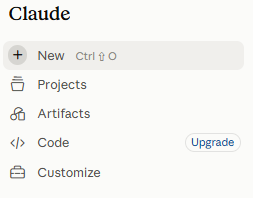
Once you’re in, click on the Artifacts icon on the left edge menu.
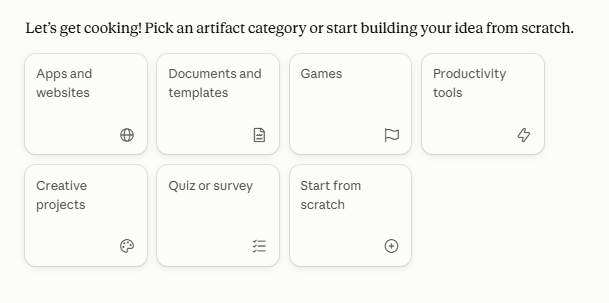
Claude gives a few options, like creating an app, website, games, etc., or you can select "Start from scratch" if you’re not sure what it is exactly that you want. The AI can even help you figure out what would be best for your situation.
The All-Important Prompt
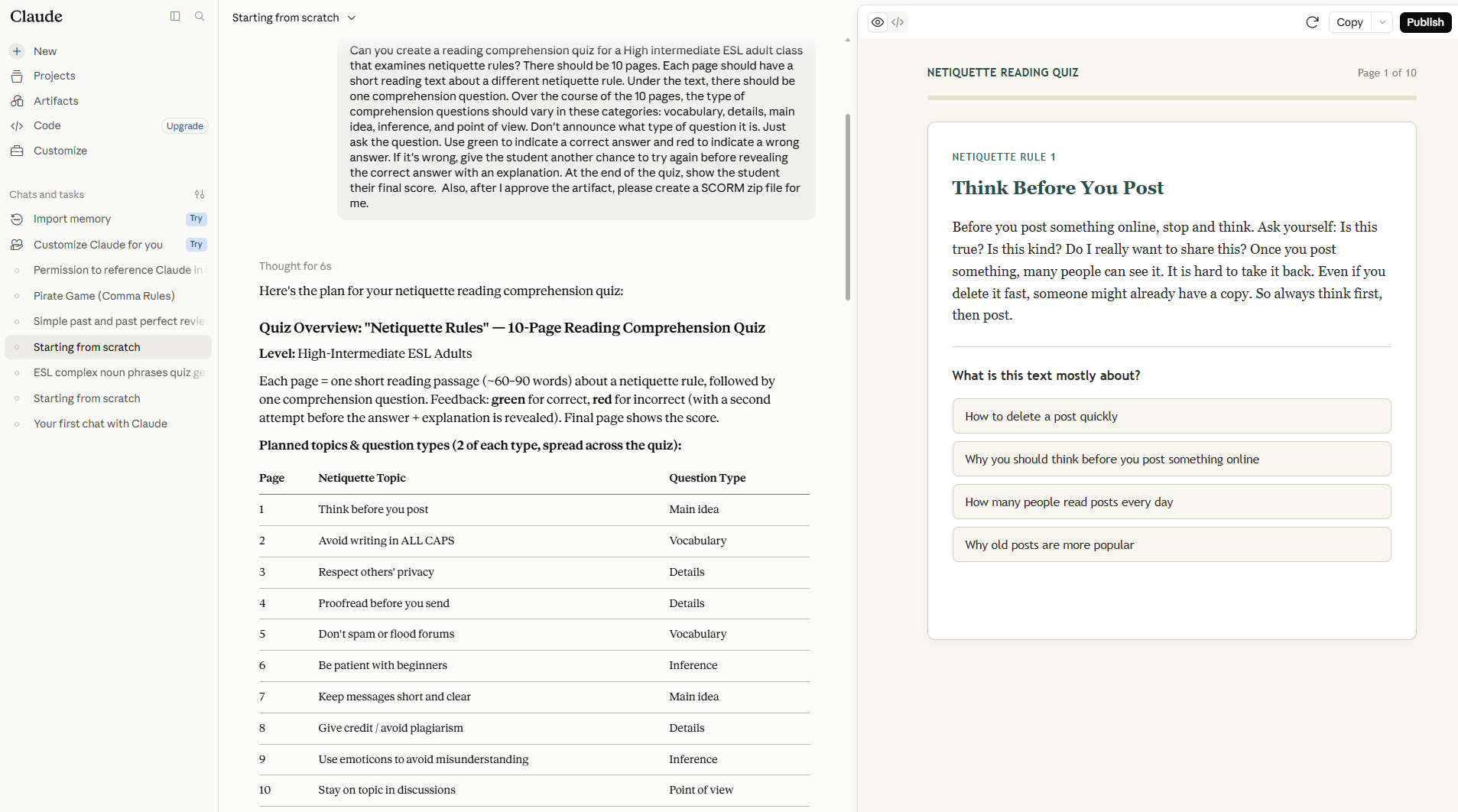
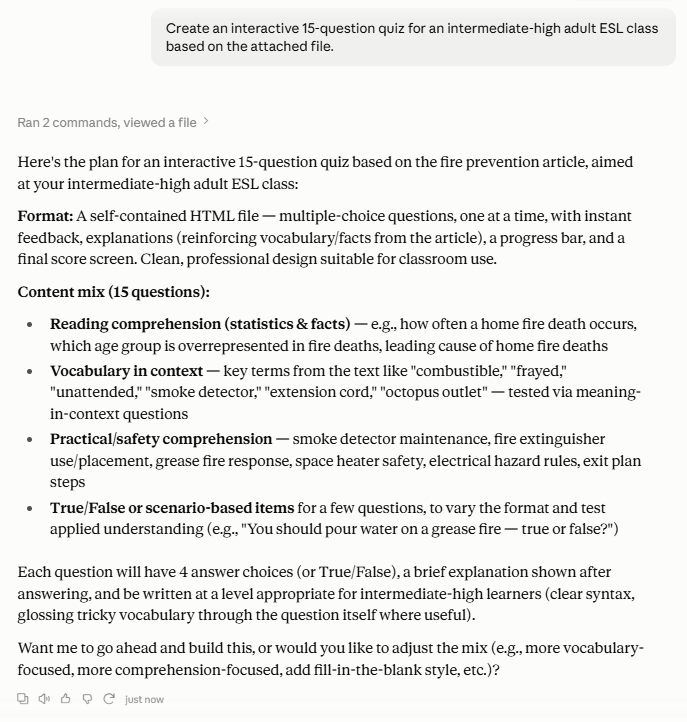
The great thing about Claude.ai is that it’s intuitive. Even if you don’t have a lot of experience writing prompts, Claude can still create interactive apps based on a simple, non-technical prompt. Here’s an example of a simple prompt using an uploaded reading comprehension Word file for an upper-level ESL class and the response that Claude provided previous to creating the app…
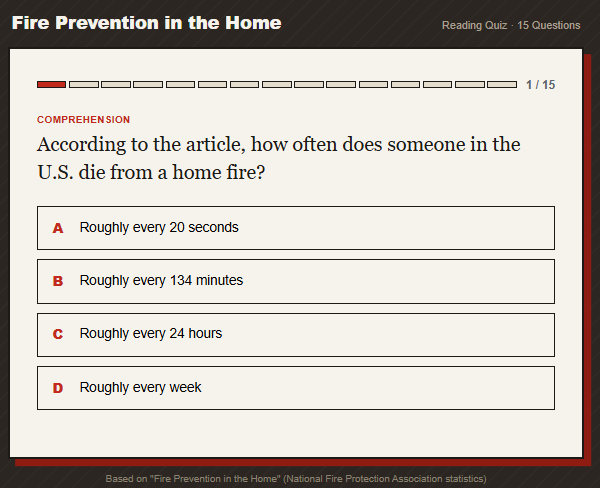
…and the app that Claude Artifacts created:
However, the more information you can provide to the AI bot, the better the outcome.
An easy thing to do to get started is to upload existing material(s) that you’d like Claude to convert to an app or to use as a basis for an extension activity, like a quiz. In the prompt area, click the plus sign ("+") and upload your document(s). Claude can read docs, pdfs, data files, and even the text in a picture. (Note: Be aware of copyright laws when uploading materials.) Then, in the prompt window, type instructions on how you want Claude to design the app and what the app should do. I recommend using the term 'interactive' in your prompt. Your prompt can be simple, such as "Create a 15 question interactive quiz using the article that I've attached” as seen above.
Of course, if you want something more specific, your prompt should reflect that. Here’s an example a more specific prompt:
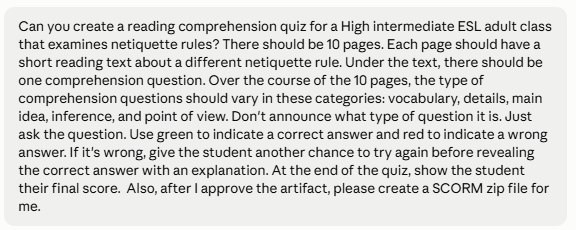
…and the app it created:
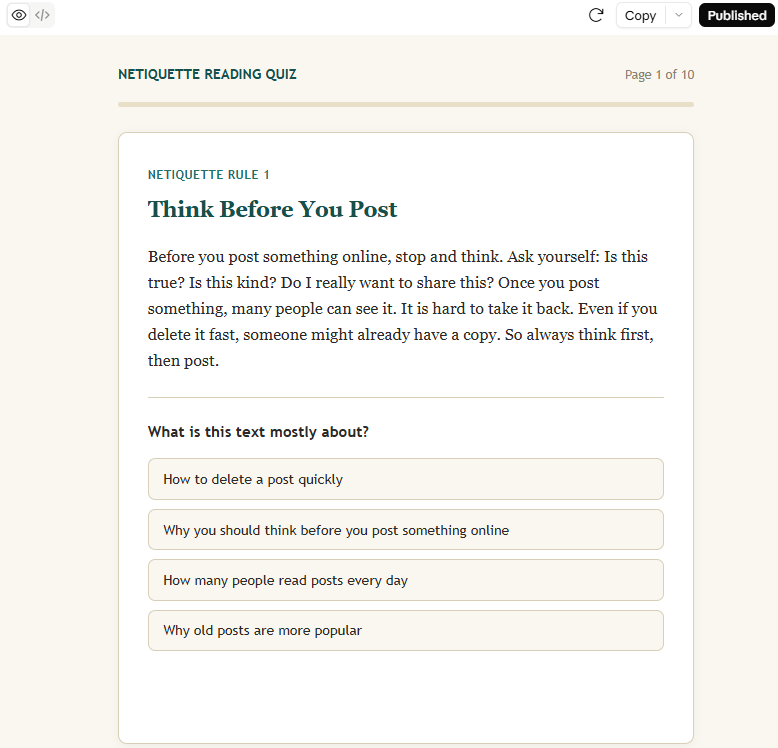
You don’t need to upload files to have Claude generate apps. Claude has acquired knowledge from millions of source materials, so it has a pretty extensive grasp on modern pedagogy, learning models, and course content of every type. For example, if you ask it to produce a sample quiz based on the Level D CASAS reading exam, it’ll know exactly what you’re talking about. Again, you should attempt to be as specific as possible in your prompts.
Once you enter your prompt, Claude will split the screen so you’ll see your conversation with Claude on the left side and the generated app on the right.
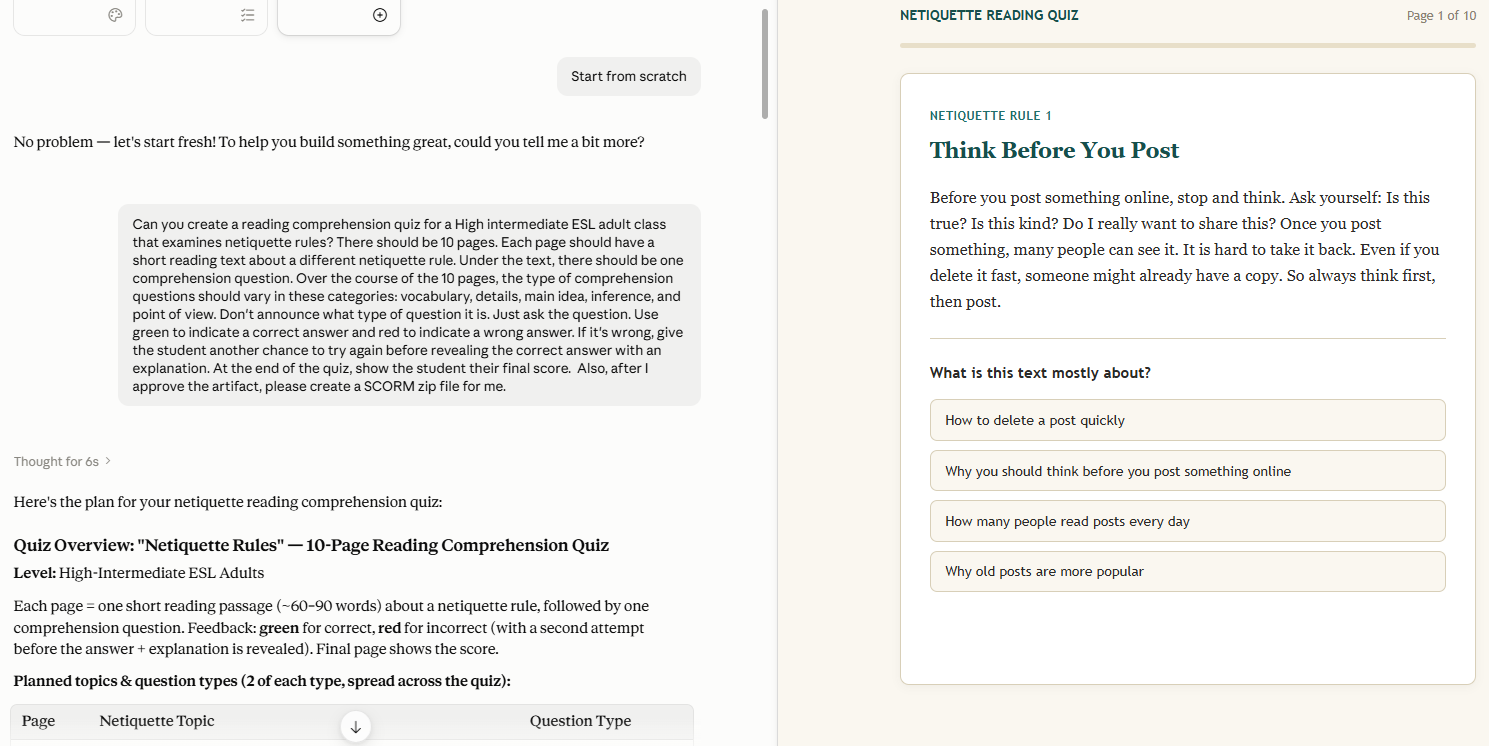
If you need to adjust your prompt(s) after it generates an app, the app on the right will automatically regenerate to the latest version.
Because Claude is so intuitive, a good practice is to include a statement at the end of your prompt(s) asking Claude to ask you any clarifying questions about any of your instructions that aren’t clear. It does a very good job of catching gaps, errors, idiosyncrasies, and unclear instructions. Here’s an example of questions that Claude asked after reading a prompt. (Note: Claude offered multiple choice answers to each of its clarifying questions. The screenshot shows only the answers that I clicked on.)
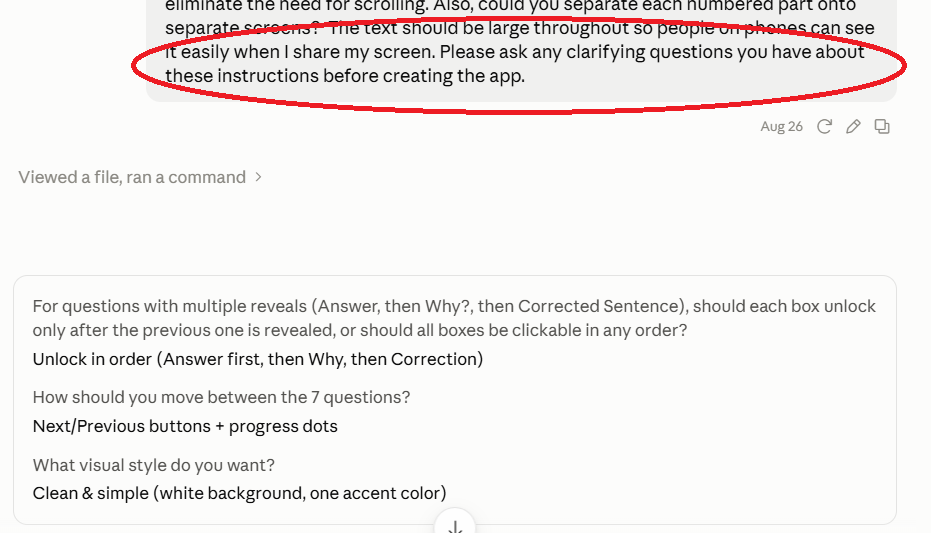
Claude won’t always catch everything, and you may have to tweak the generated app to get it exactly as you want, but having it ask you clarifying questions will cut down on the number of times you’ll need to revise the app. It’s recommended that you click through the whole app program to make sure there are no errors, design flaws, or glitches.
What Can Claude Create?
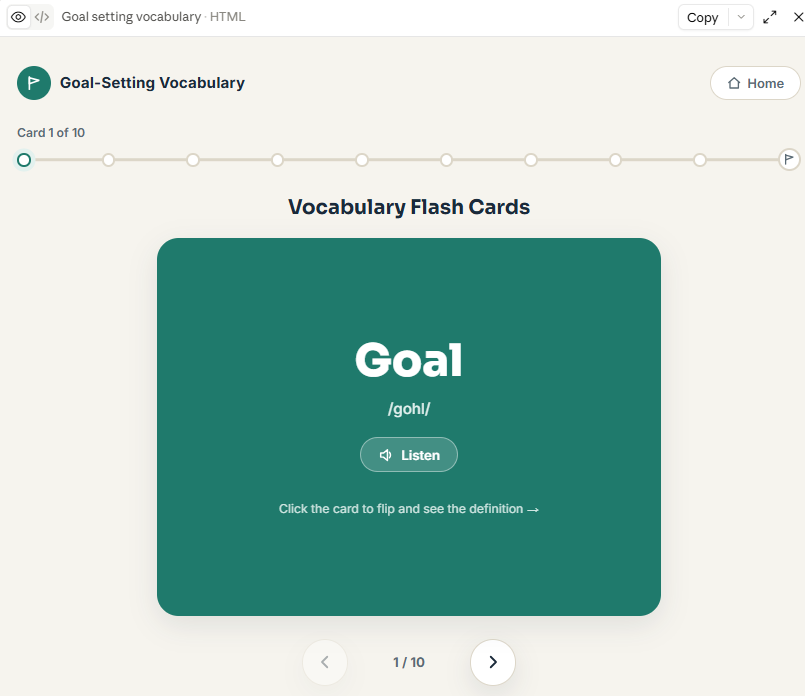
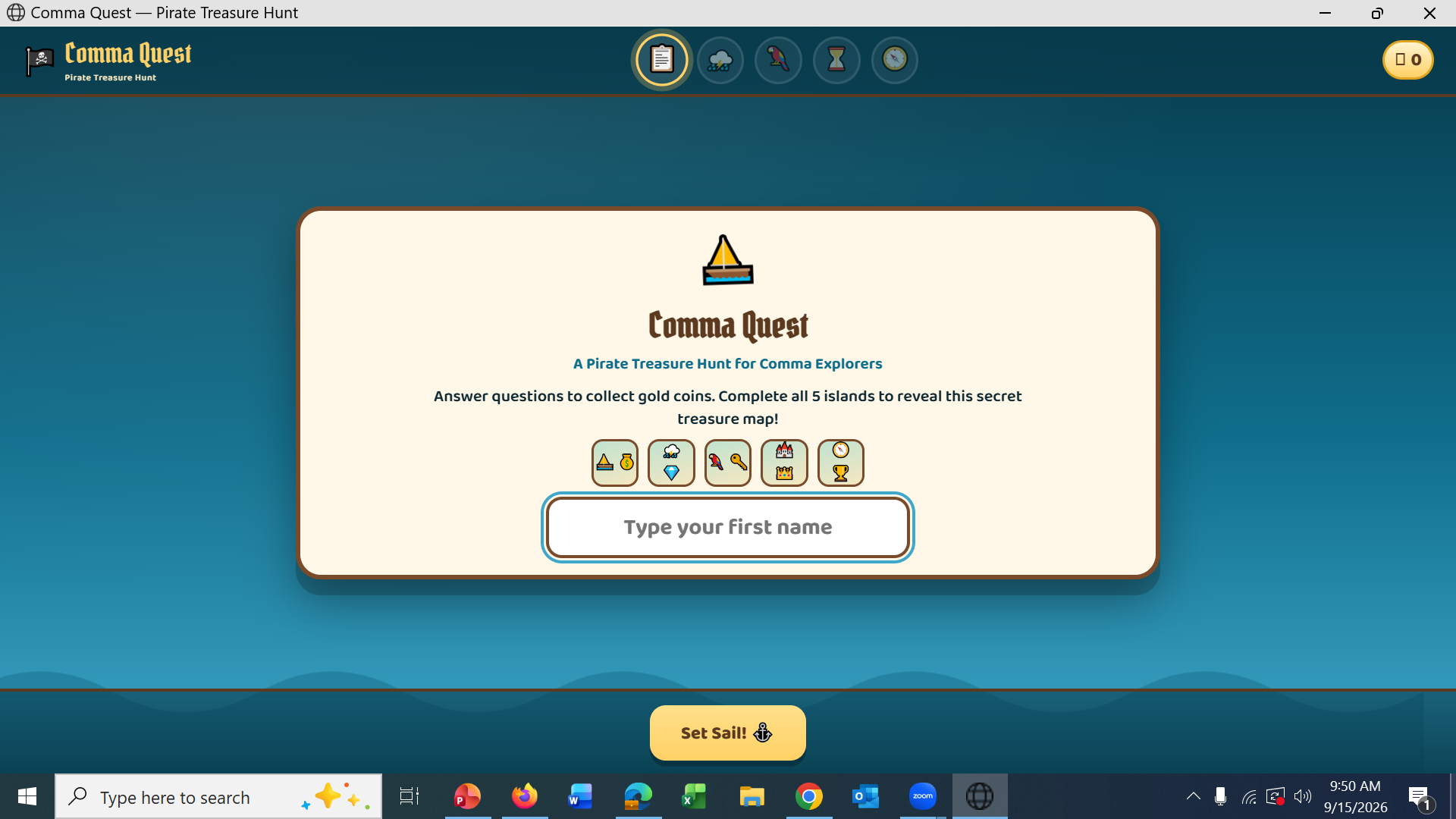
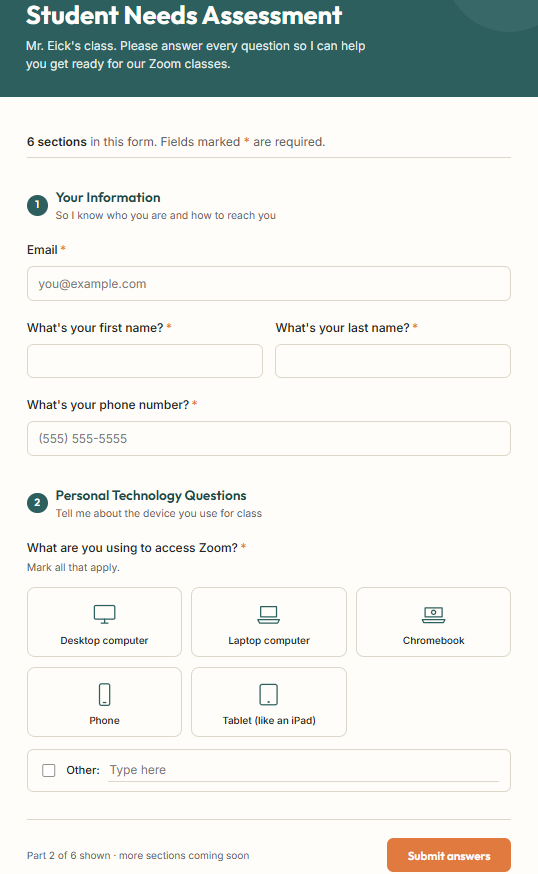
The answer is almost anything that you can think of, like…
Quizzes
Flash cards
Games
Forms
…the sky’s the limit!
This is just the tip of the iceberg. As Anthropic continues to improve its AI models, things will only get easier and more impressive in the future.
Sharing Your Apps
Once you have created the app that you want, you’ll have to decide how to share it with your students or colleagues. The default option that Claude offers is to share it as a stand-alone web page. This means that anyone who has the link will be able to open the app in any browser.
First, you must publish the app. Then, you can copy the link and share it anyway that you normally share web links, whether that be in your LMS, through email, texts, or in a Zoom chat.
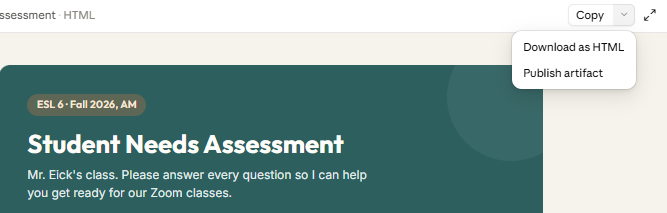
If you’d like to embed the app into an existing web page, you can download the app as HTML.
Many LMS’s offer the option to embed the app via a SCORM package. This is a great way to seamlessly integrate the app into your LMS. You can simply ask Claude to create a SCORM zip file which you can then download and upload in your LMS.
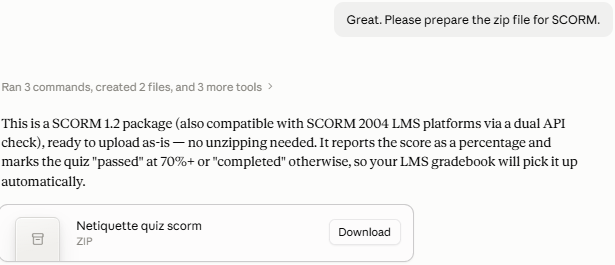
Claude can pretty much help you to save the app in any other form that you want, like a PDF, Word file…anything! However, make sure to check that the form works well before sharing it with students or colleagues. I asked Claude to create a fillable PDF for a survey app that it created and the PDF wouldn’t open. I worked with Claude and it was finally able to troubleshoot the problems to create a working file.
Conclusion
Creating tailor-made apps has never been easier, and it will only continue to get even easier. The great thing about Claude Artifacts is that you don’t need to be a tech genius or a prompt expert to generate interesting, engaging, and dynamic apps for your class, school, or district. All you need is the willingness to communicate your needs to Claude and the patience to ensure that the end product works the way you want.